WordPress runs a huge share of the web. Many small businesses in Nepal use it too. It is easy to build a site with it. It is less easy to get that site onto the first page of Google.
The good news is that WordPress gives you most of the tools you need. You just have to set them up the right way.
This guide to WordPress SEO optimization shows you how, one step at a time. You do not need to write code. You need a bit of time and a plan.
What Is WordPress SEO Optimization?
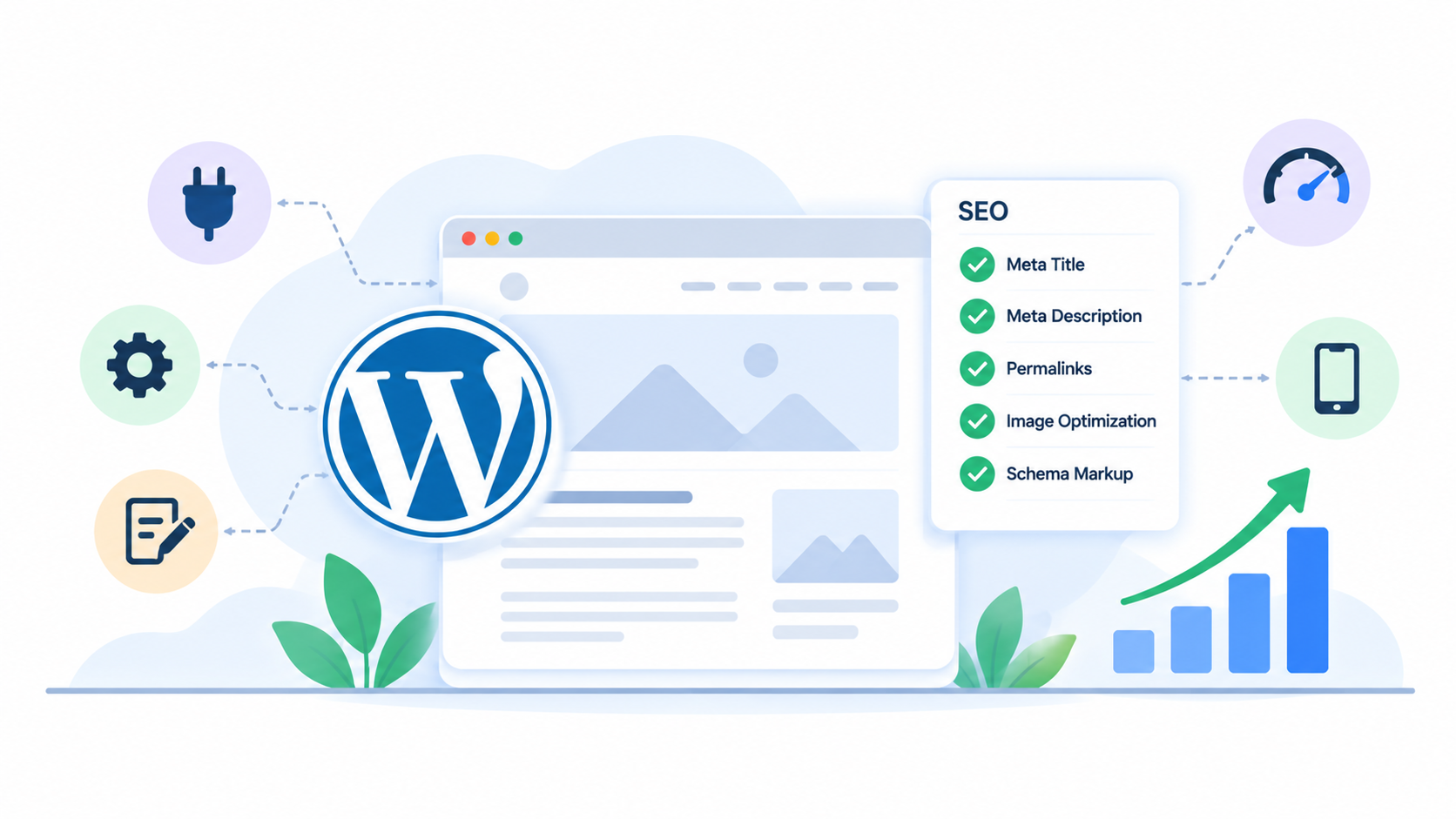
WordPress SEO optimization means setting up your WordPress site so search engines can find it, understand it, and show it to the right people. It covers your settings, your plugins, your speed, your pages, and your content.
SEO means search engine optimization. A site with good SEO shows up higher when people search for what you sell or do. That brings more visitors without paying for every click.
WordPress SEO optimization has two parts. The first part is the setup, which you do once. The second part is the ongoing work, like writing helpful pages and earning links.
Is WordPress Good for SEO?
Yes. WordPress makes clean pages by default. You can edit titles, headings, links, and images with a few clicks. It also has thousands of plugins that add more SEO tools.
But WordPress does not do the work for you. A slow theme, a pile of plugins, or one wrong setting can hold your site back. Good WordPress SEO optimization is about avoiding those traps.
WordPress SEO Optimization Checklist
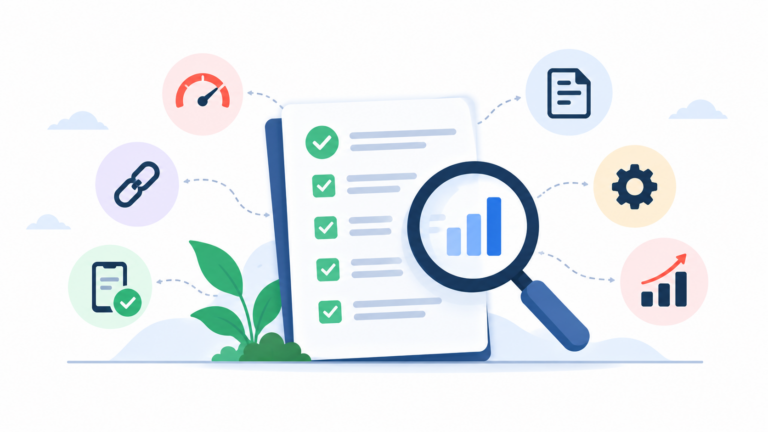
Here is the short version. The rest of this guide explains each step.
| Step | What to do |
|---|---|
| 1 | Choose fast hosting and a light theme |
| 2 | Fix the basic settings, including permalinks and HTTPS |
| 3 | Install one SEO plugin |
| 4 | Connect Google Search Console |
| 5 | Plan your pages around real keywords |
| 6 | Optimize each page and post |
| 7 | Speed up your site |
| 8 | Check mobile use |
| 9 | Add schema |
| 10 | Fix technical problems |
| 11 | Build links and local SEO |
| 12 | Keep everything updated and safe |
Step 1: Choose Good Hosting and a Light Theme for WordPress SEO Optimization
Everything starts here. A slow server or a heavy theme will undo your other work.
Hosting. Pick a host with fast servers and good support. Cheap shared hosting often gets slow when the site grows. If most of your visitors are in Nepal, ask where the servers are. A server far from your visitors can add delay.
Theme. Choose a light, well-coded theme. GeneratePress, Astra, and Kadence are popular examples. Avoid themes that load many scripts, sliders, and animations you do not need. A simple theme is easier to keep fast.
Step 2: Set Up the Basics in WordPress
A few settings matter more than the rest.
- Search engine visibility. Go to Settings, then Reading. Make sure the box that says to discourage search engines is not ticked. Many sites stay hidden for months because of this one box.
- Permalinks. Go to Settings, then Permalinks. Pick “Post name”. It gives clean links like yoursite.com/seo-tips instead of yoursite.com/?p=123.
- HTTPS. Your site should load with a padlock. Most hosts give a free SSL certificate.
- One site version. Make sure the “www” and non-” www” versions go to one main address.
- Site title and tagline. Write a clear title with your business name and what you do.
Step 3: Choose a WordPress SEO Optimization Plugin
An SEO plugin handles titles, meta descriptions, sitemaps, and more. Install only one. Two plugins that do the same job can clash.
The three common choices are Yoast SEO, Rank Math, and All in One SEO. All have free versions. They do the basics well, so pick the one whose screen you find easiest to use.
After you install it, run the setup wizard. Then check these settings:
- Your site name and logo.
- Whether pages, posts, and categories should appear in search results.
- Your XML sitemap, which the plugin creates for you.
- Social sharing images.
A plugin helps, but it does not rank your site. Think of it as a checklist inside your editor, not a magic switch.
Step 4: Connect Google Search Console for WordPress SEO Optimization
You cannot improve what you cannot see. Google Search Console is free. It shows which searches bring people to your site, which pages Google has indexed, and what errors it found.
Add your site and verify it. Then submit your sitemap. Many SEO plugins give you the sitemap address, which often ends in sitemap_index.xml. You can also connect Google Analytics to see what visitors do.
The Site Kit plugin from Google puts both inside your WordPress dashboard.
Step 5: Plan Your Pages Around Real Keywords
Good WordPress SEO optimization begins before you write. Find out what your customers type into Google.
- List your products or services.
- Type each one into Google and read the suggestions and the “People also ask” box.
- Check the top results to see what kind of pages rank.
- Choose one main keyword for each page.
Do not use the same keyword on two pages. They will compete with each other. If you want help, our SEO services include keyword research.
Step 6: Optimize Each Page and Post for WordPress SEO Optimization
On-page work is where most of the gains are. For every important page, check these:
- Title tag. Put the main keyword near the front and keep it easy to read.
- Meta description. Write a short reason to click. It does not change rankings directly, but it can bring more clicks.
- H1. Use one H1 that matches the page topic.
- Subheadings. Use H2 and H3 headings to break up the text.
- URL slug. Keep it short, like /wordpress-seo-optimization.
- First paragraph. Say what the page is about in the first few lines.
- Images. Add short, plain alt text that describes the image.
- Internal links. Link to related pages on your site.
Write for people first. Content that answers the question well will beat content stuffed with keywords. Our on-page SEO service can help if you want a second pair of eyes.
Step 7: Speed Up Your Site for WordPress SEO Optimization
Speed affects both rankings and sales. People leave slow sites. Here is how to speed up WordPress.
- Use a caching plugin. LiteSpeed Cache, WP Super Cache, and WP Rocket are common choices. Use one only.
- Compress images. Big photos are the top cause of slow pages. Plugins like ShortPixel, Smush, or Imagify shrink them. Use the WebP format when you can.
- Remove plugins you do not use. Every plugin adds some weight.
- Use a CDN. A content delivery network, like Cloudflare, serves your files from servers closer to your visitors. Cloudflare has a free plan.
- Limit fonts and scripts. Each extra file slows the page.
Test your pages in PageSpeed Insights and look at the Core Web Vitals results. They show how fast your main content loads, how fast the page reacts to a tap, and whether the layout jumps around.
Step 8: Make Your WordPress Site Mobile-Friendly
Most people in Nepal browse on phones. Google also looks at the mobile version of your site first.
Pick a responsive theme. Then open your site on a real phone. Check that the text is easy to read, buttons are easy to tap, and menus work. Test your contact form and your phone number link.
Step 9: Add Schema Markup to Support WordPress SEO Optimization
Schema is code that tells search engines more about your page, like whether it is an article, a product, or a local business. Your SEO plugin can add the basics for you.
For a local business, add your name, address, phone number, and opening hours. For a store, add product details. You can check your markup with Google’s Rich Results Test. Schema does not guarantee special results in Google, but it helps search engines understand your content.
Step 10: Fix Technical Problems in WordPress
Technical issues quietly hurt many WordPress sites. Check these:
- Sitemap. Make sure it lists only pages you want in Google.
- Robots.txt. Make sure it does not block important pages.
- Broken links. Fix them or redirect them. Search Console and free crawlers can find them.
- Redirects. When you change a URL, set up a 301 redirect from the old one to the new one. Plugins like Redirection or your SEO plugin can do this.
- Duplicate pages. Category pages, tag pages, and attachment pages can create thin or repeated content. Keep the useful ones and set the rest to noindex.
- Canonical tags. These tell Google which version of a page is the main one. Your SEO plugin usually adds them.
A deeper technical SEO audit can find problems that free tools miss.
Step 11: Build Links and Local SEO
Links from other sites tell Google that people trust you. Start with real, local links. Think business groups, partners, local news, and trusted directories. Our guide to off-page SEO explains how to earn them without risky tricks.
If you serve a local area, set up your Google Business Profile. Add your hours, photos, and services, and ask happy customers for reviews. Our local SEO services cover this.
Step 12: Keep Your Site Safe for Long-Term WordPress SEO Optimization
A hacked site can lose all its rankings. Protect yours.
- Update WordPress, your theme, and your plugins often.
- Use strong passwords and turn on two-step login.
- Back up your site every week or more often.
- Delete plugins and themes you do not use.
- Use a security plugin if your host does not give you protection.
Common WordPress SEO Optimization Mistakes
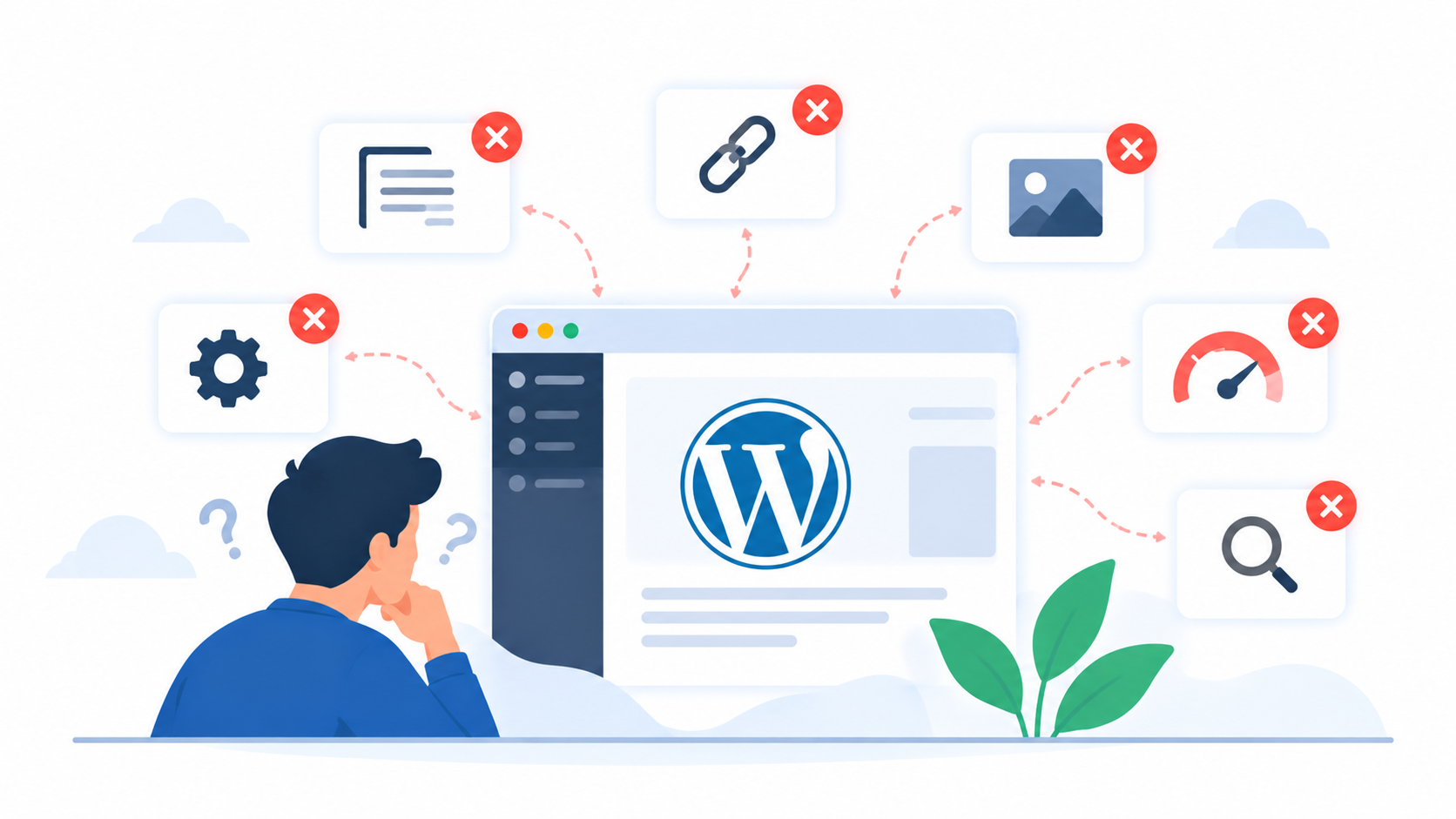
- Leaving “discourage search engines” ticked after launch.
- Installing two or three SEO plugins at once.
- Using a heavy theme and many plugins.
- Skipping alt text and image compression.
- Writing short, thin pages just to fill the site.
- Targeting the same keyword on many pages.
- Never checking Search Console.
- Changing URLs without redirects.
- Waiting a month and then giving up.
How Long Does WordPress SEO Optimization Take?
Setup can take a few hours to a few days. Results take longer. Most sites see small changes in a few weeks and clearer gains in three to six months. Hard keywords take longer.
SEO builds over time. Be careful of anyone who promises first-page results by a set date. No ethical SEO expert can guarantee specific rankings.
Do It Yourself or Hire Help for WordPress SEO Optimization?
You can handle the basics yourself with this guide. It is a good way to learn how your site works.
You may want help if your site is big, if it dropped after an update, if it has been hacked, or if you do not have the time. A specialist can run a full audit, fix the technical issues, and build a plan.
At Flowrage, we help businesses with WordPress SEO optimization, from setup and speed to content and links. See our SEO services and SEO packages. If your site needs a rebuild, we also offer website development.
Frequently Asked Questions About WordPress SEO Optimization
What is WordPress SEO optimization?
It is the work of setting up and improving a WordPress site so it ranks better in Google. It covers settings, plugins, speed, page content, technical fixes, and links.
Which is the best SEO plugin for WordPress?
Yoast SEO, Rank Math, and All in One SEO all work well. Pick one, set it up properly, and do not install a second one.
Do I need an SEO plugin for WordPress SEO optimization?
It is not required, but it makes the job much easier. A plugin handles titles, meta descriptions, sitemaps, and schema in one place.
How do I make my WordPress site faster?
Use a light theme, a caching plugin, compressed images, and a CDN. Remove plugins you do not need and test your pages in PageSpeed Insights.
Is WordPress better than other platforms for SEO?
WordPress is a strong choice because it is flexible and has many SEO tools. But other platforms can also rank well. What matters most is good content, a fast site, and clean technical setup.
How often should I update my WordPress site?
Check for updates every week. Update plugins, themes, and WordPress itself, and back up your site first.
Can I do WordPress SEO optimization without a developer?
Yes, for the basics. Settings, plugins, titles, images, and content are all doable without code. Call a developer for high-speed issues or custom problems.
Start With One Fix Today
Open Settings, then Reading, and check that the search engine box is not ticked. Then connect Google Search Console. Those two steps take ten minutes and set up everything else.
If you would like an expert to look at your site, book a free consultation with Flowrage. We will check your setup, explain what we find, and show you what to fix first.