You have a website. You want to know if Google likes it. Is it in the search results? Which words bring visitors? Why is one page missing? You can find all of this out for free, and the tool is called Google Search Console.
Many business owners never open it. That is a shame, because it shows you what Google sees. This Google Search Console guide is written for people who are new to it. We keep the words simple and the steps short.
By the end, you will know how to set it up, read the main reports and use the data to grow your traffic.
What Is Google Search Console?
Google Search Console is a free tool from Google. It shows how your website does in Google Search. You can see:
- Which searches bring people to your site.
- How many times your pages appear in results, and how many people click.
- Which pages Google has added to its index, and which it has not.
- Problems that stop Google from reading your pages.
- Which sites link to you.
Think of it as a report card from Google. It does not tell you everything, but what it does tell you comes straight from the source. That is the whole idea behind this Google Search Console guide: use Google’s own data.
Who Needs a Google Search Console Guide?
Anyone with a website can use one. This Google Search Console guide is useful if you:
- Run a small business site and want more customers from Google.
- Write a blog and want to know which posts work.
- Run an online shop and need your products indexed.
- Work at an agency and report to clients.
- Just launched a new site and want to know if Google can find it.
You do not need to know code. You need to log in, look at a few reports and act on what you see.
Google Search Console Guide to Setup
Setting up takes about ten minutes. This part of the Google Search Console guide shows how.
Step 1: Sign In
Go to Google Search Console and sign in with a Google account. Use an account you will keep, ideally a business one, not a personal account you might lose.
Step 2: Add Your Website
You will see two options for adding a property.
- Domain property. This covers every version of your site, including www, non-www, http, https and subdomains. It needs a DNS record at your domain host. This is the best choice if you can do it.
- URL-prefix property. This covers one exact address, like https://www.yoursite.com/. You can verify it in simpler ways, like an HTML file, an HTML tag in your site or your Google Analytics account.
If you are not sure, start with a URL-prefix property and the HTML tag. On WordPress, your SEO plugin often has a box where you paste the code.
Step 3: Verify Ownership
Google needs proof that the site is yours. Follow the steps on screen. If you use a domain property, you will copy a short text record into your domain settings. It can take a few minutes to work.
Step 4: Submit Your Sitemap
A sitemap is a list of your pages. This step of the Google Search Console guide is quick. Go to Sitemaps in the left menu and add your sitemap address. It is often at yoursite.com/sitemap.xml or yoursite.com/sitemap_index.xml. Your SEO plugin can usually make one for you.
Step 5: Wait for Data
New properties start empty. Data takes a few days to appear. Do not worry if the first week looks thin.
Step 6: Add Your Team
Open Settings, then Users and permissions. You can add an agency, developer or colleague. Give people the lowest level of access they need.
Google Search Console Guide to the Performance Report
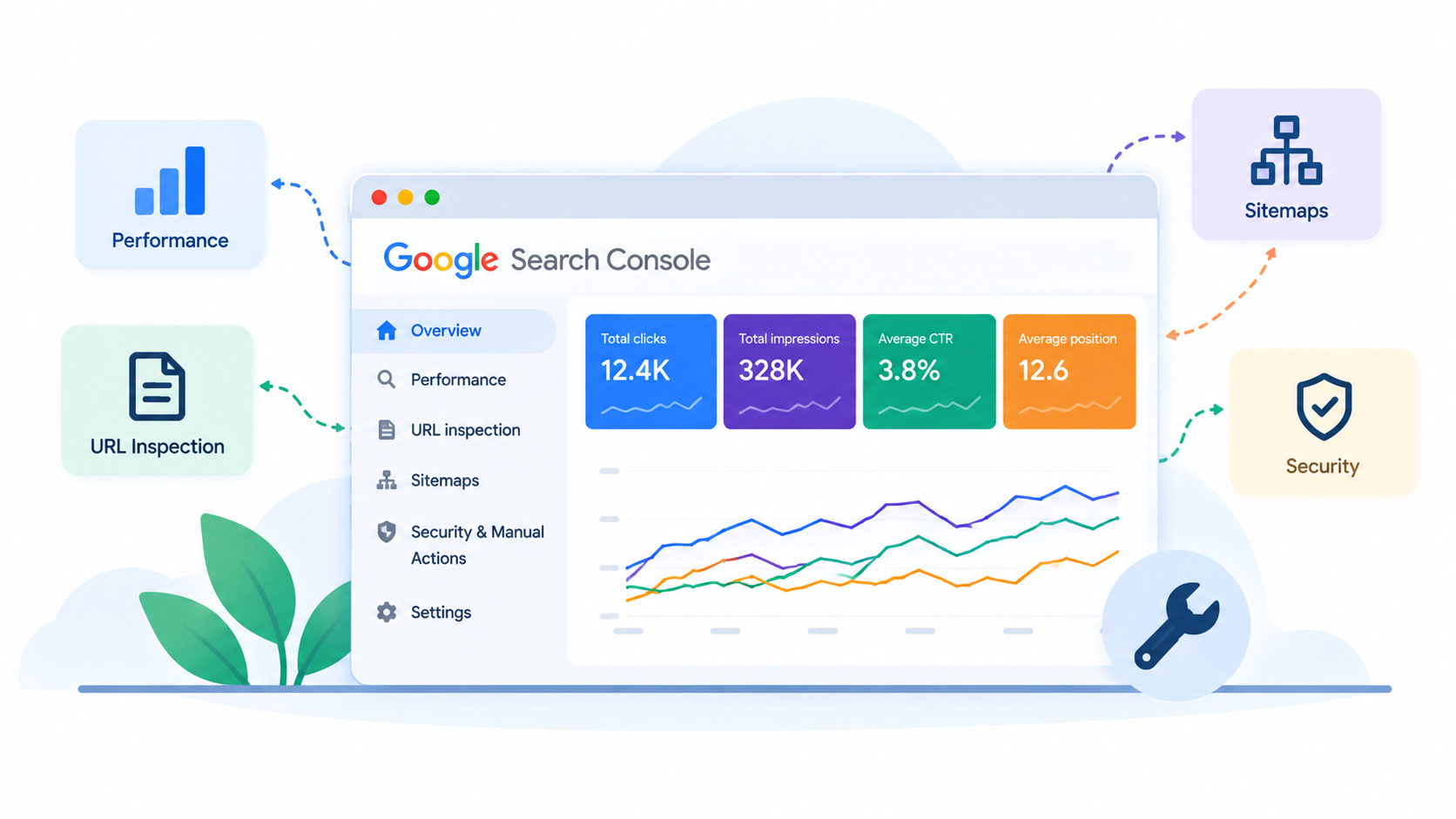
The Performance report is the part you will use most. It shows how your site does in Google Search. Open Performance, then Search results.
The Four Numbers
- Total clicks. How many times people clicked your site from Google.
- Total impressions. How many times your pages appeared in results.
- Average CTR. Click-through rate. Clicks divided by impressions.
- Average position. Your average spot in the results. Lower is better, so 3 is better than 12.
Position is an average across many searches, so use it as a guide, not an exact rank.
The Filters
Above the chart, you can filter your data.
- Date. Compare this month with last month, or this year with last year. Search Console keeps about 16 months of data.
- Queries. The words people typed.
- Pages. Which of your pages show up.
- Countries. Where the searchers are. Nepali businesses can pick Nepal to focus on local visitors.
- Devices. Mobile, desktop or tablet.
Click a query, then switch to the Pages tab. You can see which page ranks for that search. Or click a page, then switch to Queries. You can see which searches bring people to it.
How to Read the Data
Do not look at the totals alone. A good Google Search Console guide teaches you to look for patterns.
- Pages with many impressions but few clicks may need a better title.
- Queries where you are in position 8 to 20 are close to page one.
- A sudden drop in clicks may point to an indexing or ranking problem.
- New queries you did not plan for show what people really want from you.
Google Search Console Guide to Indexing
If Google cannot index a page, nobody can find it in search. The indexing part of this Google Search Console guide answers one question: is my page in Google?
The URL Inspection Tool
Paste any page address from your site into the bar at the top. Search Console tells you:
- Whether the page is on Google.
- When Google last visited it.
- Whether the page works on mobile.
- Which page Google picked as the main version.
If the page is new or changed, you can click Request indexing. Google has a daily limit, and asking again and again does not help. Ask once, then wait.
The Pages Report
Open Indexing, then Pages. It splits your pages into indexed and not indexed, and gives a reason for each group. Common reasons include:
| Reason | What it usually means |
|---|---|
| Excluded by noindex tag | The page tells Google not to index it. Is that on purpose? |
| Blocked by robots.txt | Your robots file stops Google from visiting |
| Not found (404) | The page does not exist |
| Page with redirect | The address sends visitors elsewhere |
| Duplicate without user-selected canonical | Google sees copies and picked one itself |
| Alternate page with proper canonical tag | A copy that points to the main page. Usually fine |
| Crawled, currently not indexed | Google visited but chose not to add it. Often a content quality issue |
| Discovered, currently not indexed | Google knows the page but has not visited yet |
Not every “not indexed” page is a problem. Some pages should stay out. Check that your key pages, like services, products and blog posts, are indexed.
Fixing Common Indexing Problems
- Noindex by mistake. Remove the tag. On WordPress, also check Settings, then Reading.
- Blocked by robots.txt. Edit the file so it allows your important pages.
- 404 pages. Restore the page, or redirect it to a close match.
- Crawled but not indexed. Improve the page with more useful detail, add internal links and make sure it is not a copy.
- Discovered but not indexed. Link to the page from other pages and make sure it is in your sitemap.
Our technical SEO audit can help with harder cases.
Other Reports Worth Checking
You do not need to master every report. This Google Search Console guide covers the ones that matter most.
Sitemaps. Shows whether Google could read your sitemap and how many pages it found.
Core Web Vitals. Shows how real users experience your site’s speed, based on field data. Pages are grouped as good, needs improvement or poor. Read more on web.dev.
Links. Shows your top linked pages, the sites linking to you and the words they use. It is a good free start for checking your backlinks.
Security and manual actions. If Google finds a hacked site or a rule break, it tells you here. This page should say “No issues detected”.
Settings and Crawl stats. Shows how often Google visits your site and if it has trouble loading it.
Enhancements and shopping. If your site uses structured data, these reports show if it has errors.
7 Quick Wins From This Google Search Console Guide
Here are simple ways to use the data this week.
- Fix low-CTR pages. Find pages with many impressions and few clicks. Rewrite the title and meta description to give a clearer reason to click.
- Push page-two keywords. Find queries in positions 8 to 20. Add more detail to the page, link to it from other pages and update it.
- Find content gaps. Look at queries you appear for but have no page about. Write one.
- Spot cannibalization. If two pages show for the same query, merge them or give each a different focus.
- Fix indexing errors. Clear any key pages that are not indexed.
- Update old pages. Pages whose clicks are falling often need fresh facts and dates.
- Check mobile. Filter by device. If mobile clicks are weak, test your mobile speed.
Google Search Console Guide: Search Console vs Google Analytics
People mix these up. They do different jobs.
| Google Search Console | Google Analytics | |
|---|---|---|
| Shows | How you appear in Google Search | What visitors do on your site |
| Data starts | Before the click | After the click |
| Good for | Queries, rankings, indexing, errors | Traffic sources, behavior, goals |
| Cost | Free | Free |
Use both. Search Console tells you how people find you. Analytics tells you what they do next.
A Simple Weekly Routine From This Google Search Console Guide
You do not need hours. Use this routine.
| When | What to check |
|---|---|
| Every week | Performance clicks and impressions. Any new errors in the Pages report. Manual actions. |
| Every month | Top queries and pages compared with last month. Pages with low CTR. Core Web Vitals. |
| Every quarter | Indexing of all key pages. Links report. Sitemap status. |
| After any big change | URL Inspection on key pages. Pages report for new errors. |
Turn on email alerts. Search Console sends a message when it finds a serious problem.
Google Search Console Guide for Nepali Businesses
A few tips from our Google Search Console guide if you work in Nepal.
- Filter by country. Pick Nepal in the Performance report to see local demand.
- Watch mobile. Most visitors use phones, so compare mobile and desktop.
- Look for local searches. Queries with places like Kathmandu, Lalitpur or Pokhara show your local reach.
- Check Nepali and Romanized searches. Some people type in Nepali script or in English letters, like “ghar jagga”. Search Console shows the exact words people used.
- Pair it with your Google Business Profile. Search Console covers your website. Your profile covers map results. Our local SEO services bring the two together.
Many search tools show low volumes for Nepal. Search Console is real data from your own site, so it often fills the gaps.
Google Search Console Guide: 8 Common Mistakes to Avoid
- Setting it up and never opening it again.
- Only watching clicks and ignoring indexing.
- Panicking over small daily ups and downs. Look at weeks and months.
- Requesting indexing for the same page again and again.
- Using only a URL-prefix property and missing other site versions.
- Giving too many people full owner access.
- Blaming Google for a drop without checking the Pages report first.
- Fixing every warning, even ones that do not matter.
Use This Google Search Console Guide Yourself or Get Help?
You can use this Google Search Console guide to run the basics yourself. It is free and a great way to learn how your site works.
You may want help if your site is large, if traffic dropped suddenly, if you cannot tell why pages are not indexed or if you want a clear plan. At Flowrage, we use Search Console in every project. We read the data, find the problems and tell you what to fix first. See our SEO services, on-page SEO and SEO packages.
Google Search Console Guide FAQs
What is Google Search Console used for?
It shows how your site performs in Google Search. You use it to see search queries, check indexing, find errors and watch your traffic.
Is Google Search Console free?
Yes. It is free for anyone who owns or manages a website, so this Google Search Console guide needs no paid tools.
How long does it take for data to appear?
New properties often show some data within a few days. Performance data usually lags by a day or two.
What is the difference between impressions and clicks?
An impression means your page appeared in the results. A click means someone chose it. Clicks divided by impressions give your click-through rate.
Why is my page not indexed?
Common reasons are a noindex tag, a robots.txt block, a 404 error or content that Google chose not to add. Use the URL Inspection tool to find the reason.
How do I get a new page indexed faster?
Add it to your sitemap, link to it from other pages and use Request indexing once in the URL Inspection tool.
How long does Search Console keep data?
The Performance report keeps about 16 months of data. Export your numbers if you want to keep them longer.
Where can I find a Google Search Console guide for beginners?
You are reading one. Start with setup, then the Performance and Pages reports. For more detail, Google also has its own Search Console Help pages.
Do I need Search Console if I have Google Analytics?
Yes. They show different things. Search Console shows how you appear in search. Analytics shows what visitors do on your site.
Put This Google Search Console Guide to Work Today
Open Search Console. Check the Pages report for your key pages. Then open Performance and look at the queries that bring you clicks. That alone takes fifteen minutes and often shows you something new.
If you would like an expert to read your data with you, book a free consultation with Flowrage. We will check your setup, explain what we see and show you what to do first.